 Photo editing
Nano Banana Pro
Recolor Clothing Without Restyling the Photo
Change selected garment colors while preserving fabric texture, fit, people, and setting—ideal for comparing colorways without restyling the photo.
1 reference image
Remove one identified bystander from a portrait or travel photo and cleanly reconstruct the background while keeping the main subject and framing intact.
Use this prompt when a bystander distracts from a portrait, travel photograph, or event image. It keeps the main subject and camera framing fixed while rebuilding the area behind one identified person. Describe the person by position and clothing so the edit has an unambiguous target.
Edit this photograph by removing [PERSON_TO_REMOVE]. Reconstruct the newly exposed area from the surrounding scene, continuing surfaces and perspective naturally. Retain the main subject, original framing, exposure and color. Remove shadows or reflections that belong only to the removed person. Where the hidden background is uncertain, use a simple plausible continuation rather than adding a new object. Return a single clean photograph without annotations.
Copy the prompt first, then upload the required reference image and paste the prompt into Gemini to start an image-editing chat. This link opens Gemini; it does not prefill or generate an image.
See what each instruction controls, then adjust the parts that matter to your image.
removing [PERSON_TO_REMOVE]
Makes the selected person the editable target rather than treating every person in the photograph as removable.
continuing surfaces and perspective naturally
Directs the newly revealed area to follow the surrounding scene's geometry.
Retain the main subject, original framing, exposure and color.
Keeps the central subject and overall photographic treatment outside the requested change.
Remove shadows or reflections that belong only to the removed person.
Includes the person's secondary visual traces instead of removing only their body.
use a simple plausible continuation rather than adding a new object
Limits reconstruction in uncertain areas so the edit does not introduce a new distraction.
Upload one photo and identify the person to remove by position or clothing.
Replace the bracketed fields with the details for your case.
Upload one photo and identify the person to remove by position or clothing.
Paste the complete prompt into your image tool, then review the result against your goal.
Photo editingChange selected garment colors while preserving fabric texture, fit, people, and setting—ideal for comparing colorways without restyling the photo.
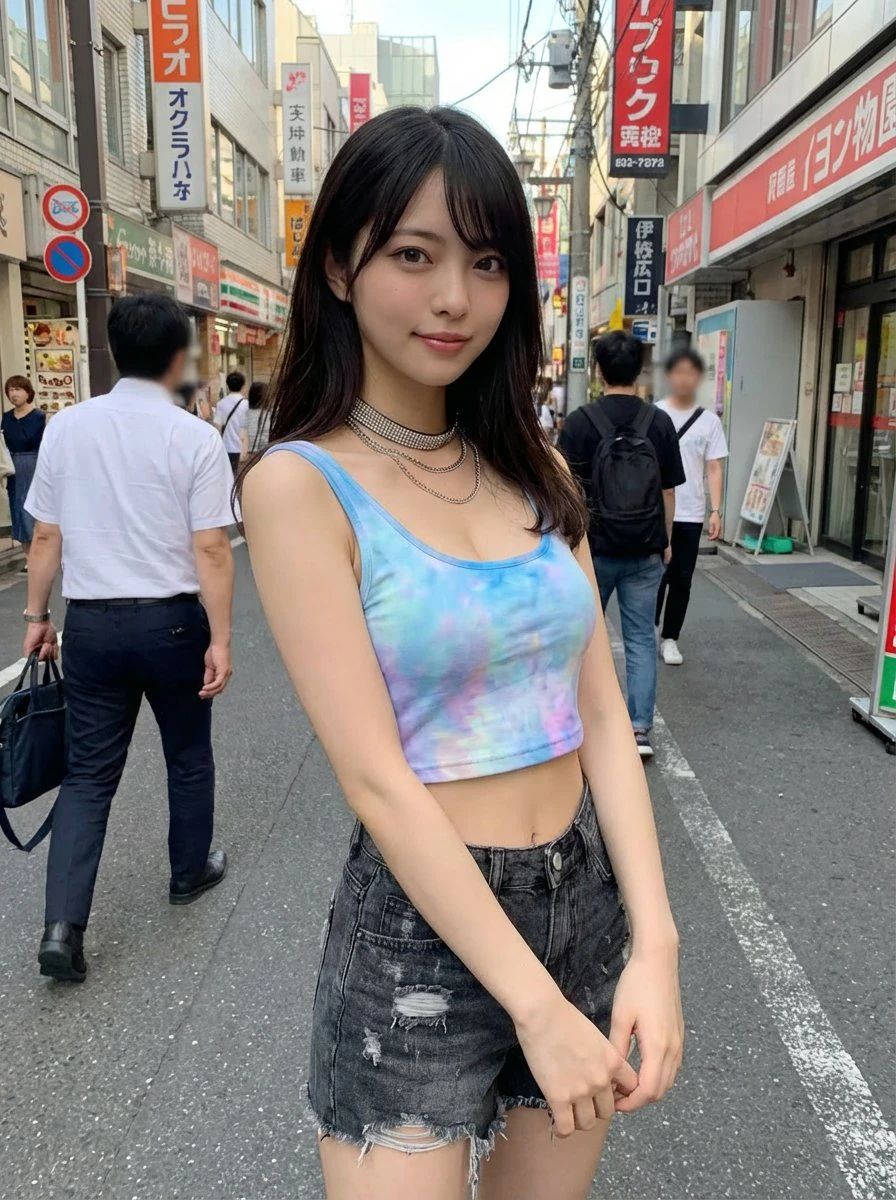 Photo editing
Combine a person's photo with a separate outfit reference. Preserve identity cues while adapting garment fit, folds and lighting to a coherent fashion image.
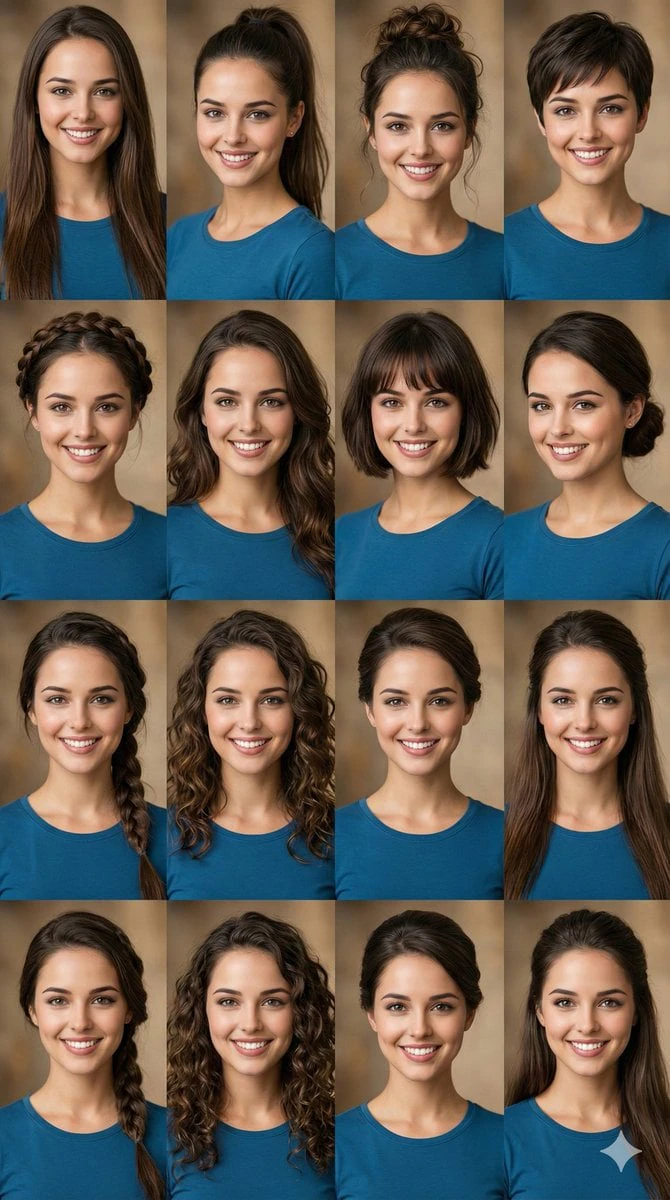 Photo editing
Create a six-panel hairstyle comparison from one portrait while keeping facial features, expression, wardrobe, and studio lighting consistent.