 Photo editing
Nano Banana 2.1
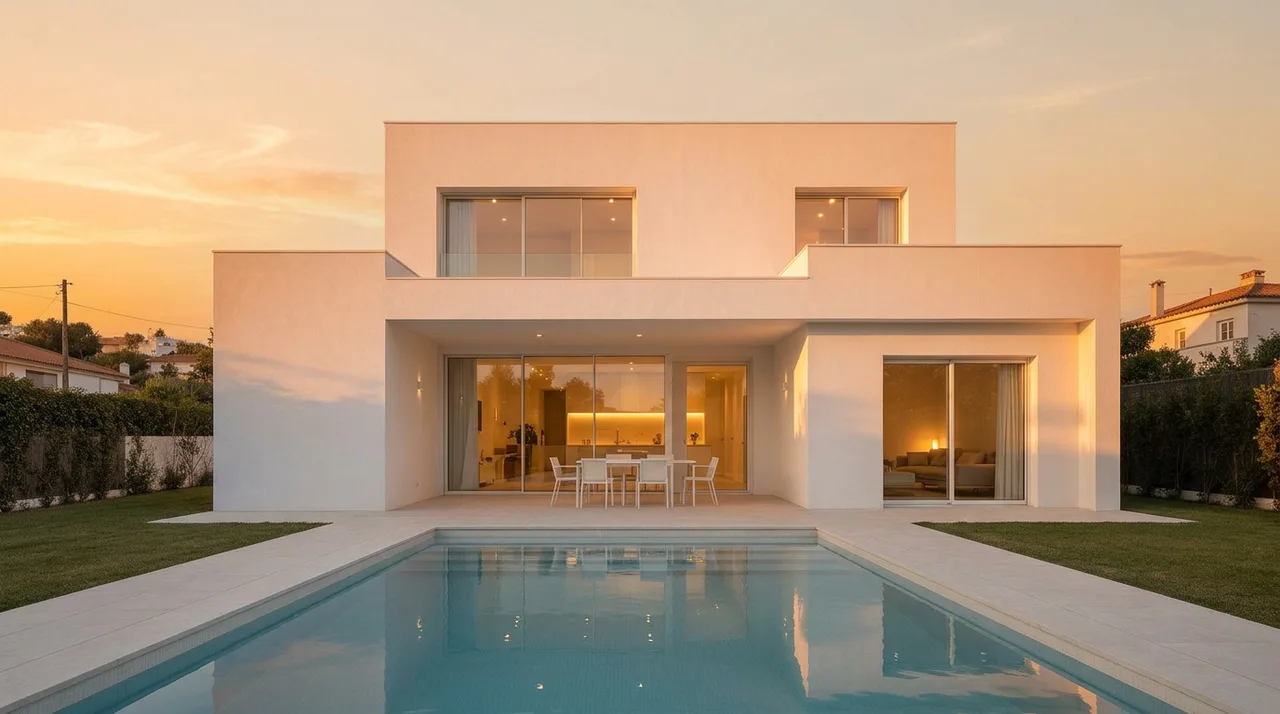
Relight an Exterior from Midday to Golden Hour
Relight a building photo from midday to golden hour by rebuilding sky, reflections, and shadows while keeping architecture and camera angle aligned.
1 reference image
Expand the canvas around an existing photo by continuing the scene at its edges while keeping subject proportions intact and avoiding distortion.
Use this prompt to adapt an existing photograph for a website banner, a tall social placement, or a layout that needs headline space. It adds canvas around the image instead of stretching the subject. Choose the target ratio and expandable edges together, then specify which new area should remain visually quiet.
Expand the uploaded photograph to [TARGET_RATIO] by adding image area on [EXTEND_EDGES]. Use the existing photograph as the central visual reference. Retain the subject's appearance, scale and pose; do not stretch the image to fit the new canvas. Continue the surrounding environment with matching perspective, light direction, grain and depth of field. Extend interrupted lines and surfaces smoothly across the old boundaries. Keep newly invented background details quiet so they do not compete with the original subject. Leave [TEXT_SPACE] relatively uncluttered if room for a future headline is needed. Return a seamless photograph in the requested shape, without borders, labels or a before-and-after layout.
Copy the prompt first, then upload the required reference image and paste the prompt into Gemini to start an image-editing chat. This link opens Gemini; it does not prefill or generate an image.
See what each instruction controls, then adjust the parts that matter to your image.
to [TARGET_RATIO] by adding image area on [EXTEND_EDGES]
Links the requested image shape with the edges where new content may be added.
Retain the subject's appearance, scale and pose; do not stretch the image to fit the new canvas.
Separates canvas expansion from resizing or reshaping the original subject.
matching perspective, light direction, grain and depth of field
Lists the visual properties that the extended scene should share with the original.
Extend interrupted lines and surfaces smoothly across the old boundaries.
Focuses attention on architectural lines and surfaces that cross the original image edge.
Leave [TEXT_SPACE] relatively uncluttered
Reserves a chosen part of the expanded image for later typography.
Upload the uncropped image. Specify the target ratio and which edges may be extended.
Replace the bracketed fields with the details for your case.
Upload the uncropped image. Specify the target ratio and which edges may be extended.
Paste the complete prompt into your image tool, then review the result against your goal.
Photo editingRelight a building photo from midday to golden hour by rebuilding sky, reflections, and shadows while keeping architecture and camera angle aligned.
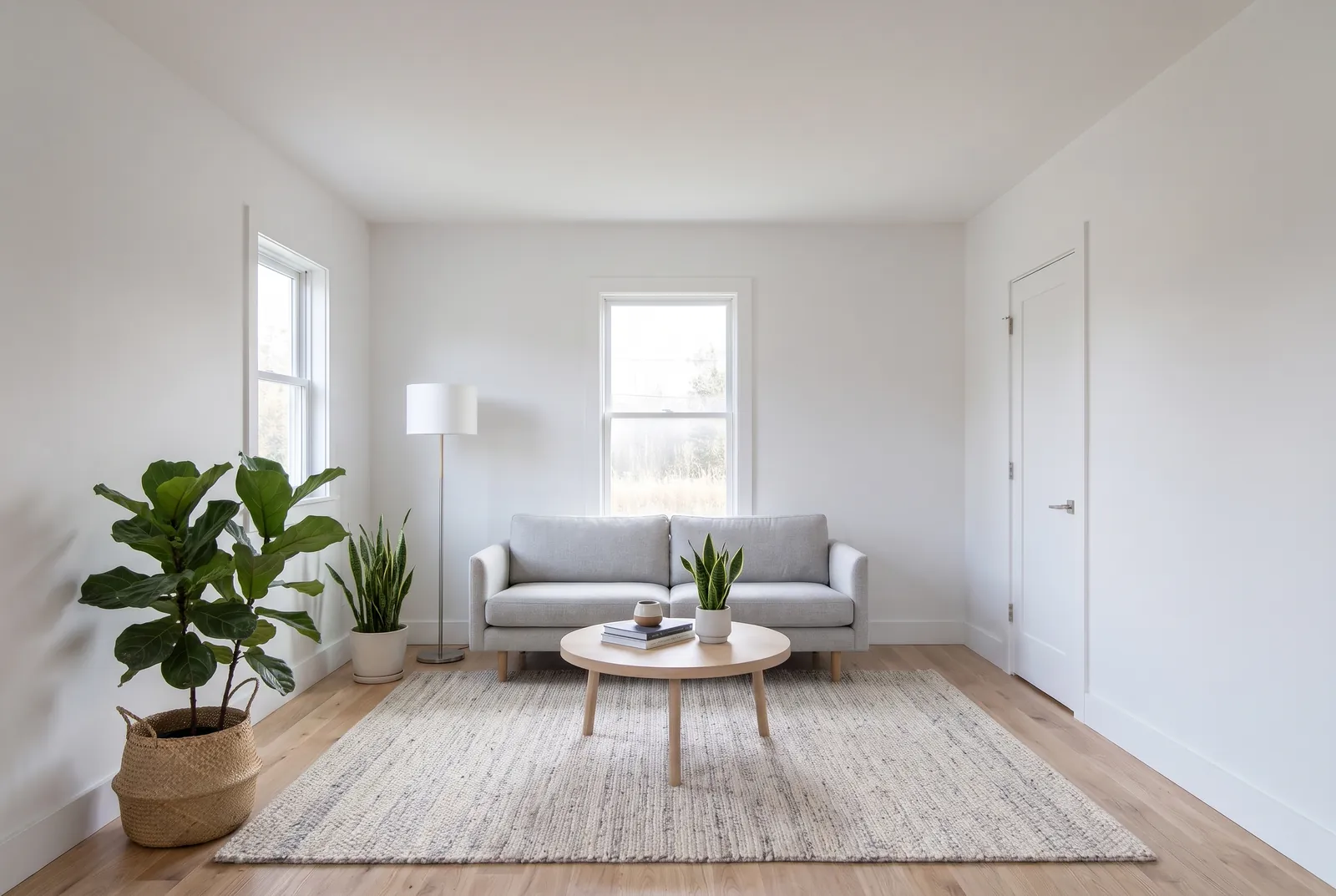 Photo editing
Stage an empty interior with a chosen furniture style while keeping the room structure, camera angle, natural light, and plausible spacing intact.
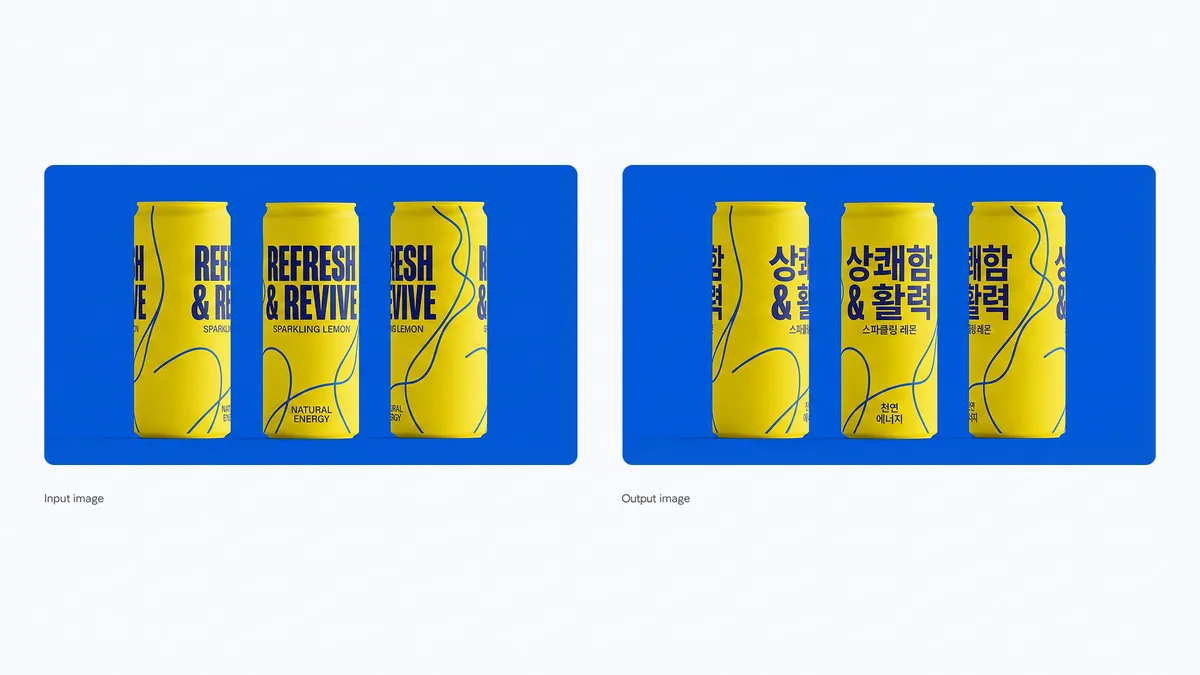 Photo editing
Translate or localize visible text on an existing package photograph while preserving container shape, surface curvature, lighting, and label hierarchy.